
How to Safely Temporarily Disable Your CCTV Camera
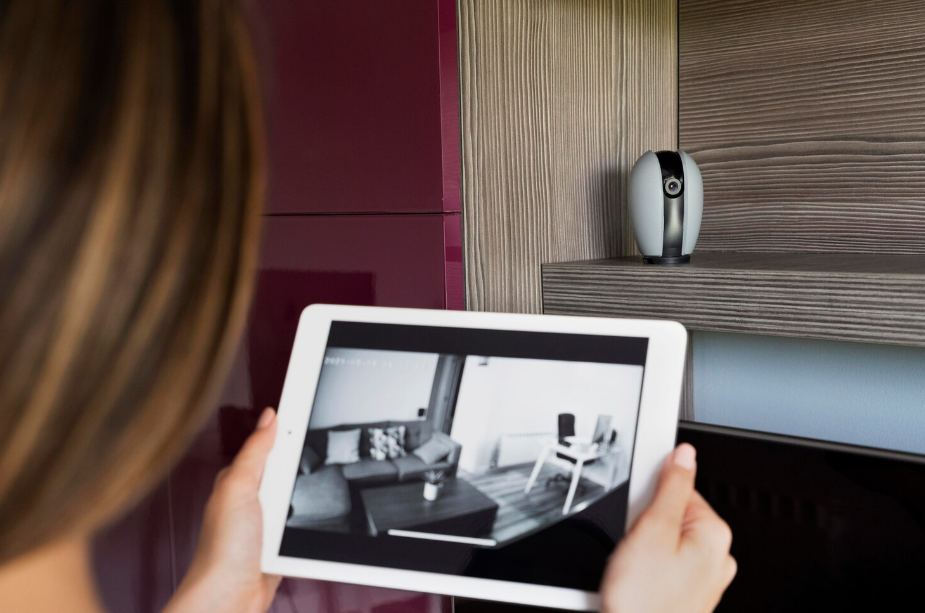
Turning off a CCTV camera for a little while isn’t as scary as it sounds, but you do need to pay attention. The process has a few steps, and missing one can leave gaps in security or even mess with the system.
A good start is just taking a look at where the camera is, making sure you handle power the right way, checking settings for remote access, covering the lens, letting people know, and keeping an eye on things while it’s off. It might feel like a lot at first, but if you take it step by step and maybe have some reliable IT support on call, it’s not too bad.
Assess Camera Placement and Coverage
Before you do anything with the camera itself, spend some time noticing where it’s pointing and what it can see. Walk around and check that it’s actually covering the areas you care about. Blind spots are tricky; they’re easy to miss until it’s too late. Look at the height of the camera too; too low and people could mess with it, too high and faces get cut off. Light and shadows matter more than you’d think.
You might need to move furniture or adjust the angle slightly. And make sure it’s attached securely; loose cameras are just asking for trouble. Spending a few extra minutes on this makes the rest of the process way smoother.
Power off the CCTV Camera
Shutting down the camera safely is more than just unplugging it. Find the right power source first, usually an adapter in the wall, and make sure it’s the camera and not your desk lamp or something else.
Pull the plug carefully and wait a few moments for the system to power down fully. Jumping the gun could damage the camera or the software controlling it. A little patience here goes a long way, and honestly, it keeps your nerves in check, too.
Disable Remote Access or Alerts
Next up is the settings menu. You’ll want to switch off remote access so no one can peek in while the camera’s off. Then look at the alerts, motion detection, sound notifications, that sort of thing, and make sure everything is muted. It’s easy to miss one little toggle, so double-check.
Save your changes before moving on. This part can feel a bit tedious, but it’s worth it to avoid surprise notifications or accidental recordings while the camera isn’t active.
Cover or Mask the Camera Lens
Covering the lens adds another layer of caution. You don’t want the camera thinking it’s malfunctioning, so pick a non-reflective cover. Tape or Velcro works fine, and it should be easy to remove when you’re ready to switch the camera back on.
Keep an eye on it now and then to make sure it hasn’t slipped or interfered with the mechanism. It’s a small step, but it really helps keep the system intact and private while offline.
Communicate Downtime to Stakeholders
Letting people know the camera is offline avoids a lot of confusion. Tell staff, security, and anyone in the building how long the camera will be down and why. Even a short email or text can save a lot of questions. Mention any temporary security measures so everyone feels safe.
Giving a contact person for questions helps too. And if you follow up once it’s back online, it shows responsibility and keeps people confident in your security practices.
Monitor for Any Security Breaches
Even with the camera off, stay alert. Watch for anyone hanging around sensitive spots, fiddling with equipment, or acting strangely. If your system still has motion detection, keep it on; if possible, it can alert you to unexpected activity.
Take notes of anything unusual. Reviewing things carefully now prevents bigger headaches later. It might feel like overkill, but it’s just a smart habit when you’re turning off part of your security setup.
Related Topics: